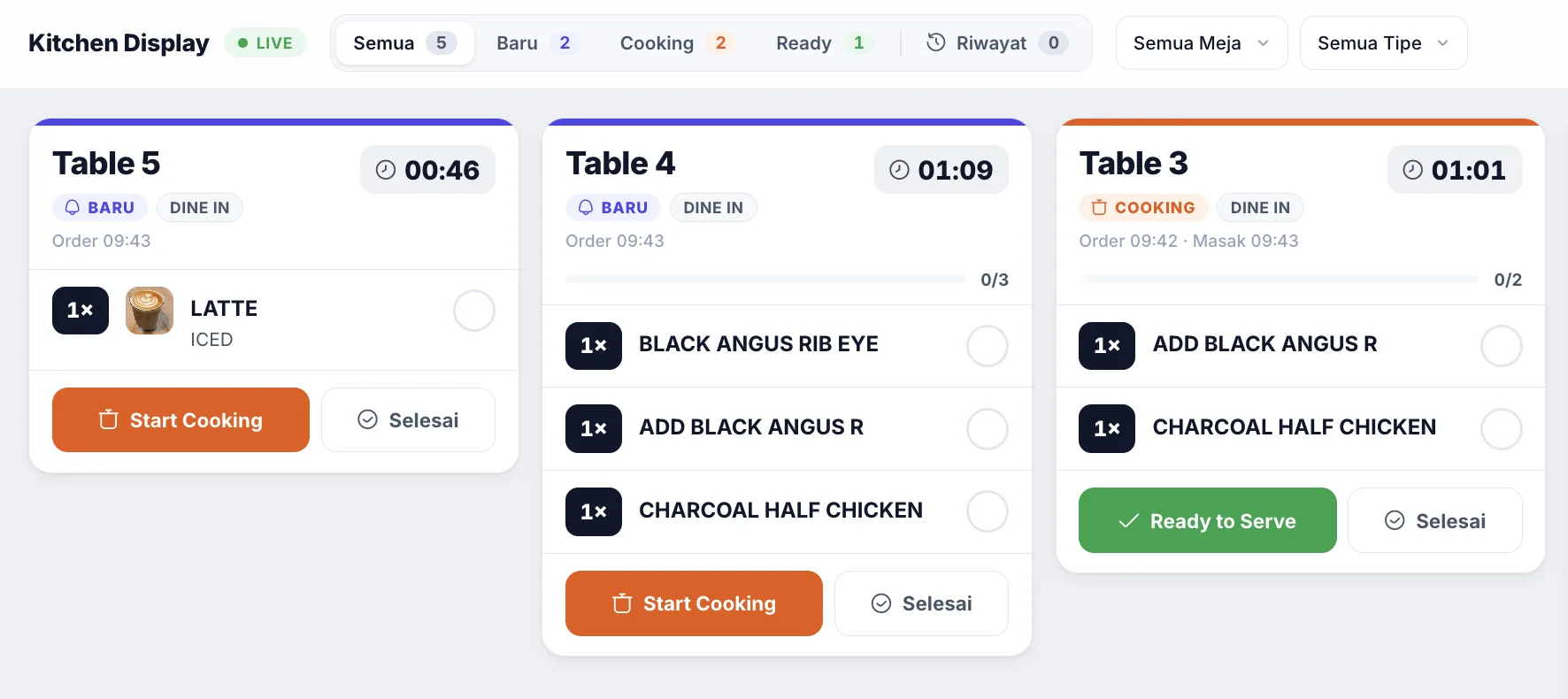
A Kitchen Display System (KDS) is a digital screen in the kitchen that shows orders straight from the point of sale. It replaces paper tickets from the kitchen printer. As soon as the cashier taps Send, the order appears on the kitchen screen with the table number, guest notes, and menu options. Cooks prepare it and mark it ready.
This guide covers how a POS and KDS work together, how a KDS compares with a kitchen printer, what hardware you need, and how to set one up in your café or restaurant.
How Do a POS and KDS Work Together?
A KDS always works alongside a POS system. The flow is simple:
- An order comes in. The cashier enters it on the iPad, or guests order themselves via the table QR code or a kiosk.
- It goes to the kitchen. The POS sends the order to the kitchen and bar screens in real time, with nothing printed.
- It is prepared in order. Orders appear by table, oldest first, so the kitchen always knows what to cook next.
- It is marked done. The cook taps "Done" and the cashier or server instantly sees the order is ready to serve.
Orders by Course: Appetizer, Main, Dessert
For restaurants serving multi-course meals, ZyncPOS KDS shows orders by course. A table's appetizers, mains, and desserts are grouped separately, so the kitchen knows what to prepare first and what is still waiting. Guests get each dish in the right order, without the main course arriving together with the appetizer.
KDS vs Kitchen Printer: Which Is Better?
Kitchen printers are still common, but the busier your kitchen gets, the more their weaknesses show.
- Lost or wet tickets. Paper falls, gets splashed, or piles up. On a screen, an order stays visible until it is marked done.
- Unclear order. Stacks of tickets get mixed up. A KDS sorts orders automatically by time received.
- No status at the counter. With a printer, the cashier has to ask the kitchen. With a KDS, cooking status is visible at the POS.
- No timing data. A KDS records how long each order takes, so you can see which hours or dishes slow the kitchen down.
- Ongoing paper costs. A KDS is set up once, with no paper rolls to buy every week.
You don't have to choose just one. In ZyncPOS, a KDS works alongside multi-station kitchen printers. For example, the main kitchen can use a screen while the bar keeps its printer.
What Do You Need for a KDS?
- A screen in the kitchen. Any tablet or monitor with a browser. ZyncPOS KDS is web-based, so there is no extra app to install.
- An internet connection. The kitchen screen only needs internet access. It doesn't have to share a WiFi network with the cashier iPad, so another WiFi or a hotspot works, and orders still appear in real time.
- A stand or wall mount. Place the screen at eye level, away from the stove and water splashes.
- A POS that supports KDS. Orders from the counter, QR ordering, and kiosk should flow to the kitchen automatically.
How to Set Up ZyncPOS KDS
- Set up a tablet or monitor in the kitchen and connect it to the internet (any WiFi or a hotspot).
- Open a browser, sign in to the ZyncPOS Web Dashboard, and select KDS mode.
- Send a test order from the POS and check that it appears on the kitchen screen.
- Train the kitchen team to tap "Done" when an order is ready, so the cashier is notified right away.
Tips for Getting the Most from a KDS
- Split stations. Route food to the kitchen screen and drinks to the bar screen or printer, so each team only sees its own orders.
- Use modifiers, not free text. Options like "no ice" or "spicy level 2" are easier to read and harder to misinterpret.
- Watch prep times. Review the report weekly to find the dishes that take longest during peak hours.
- Make tapping "Done" a habit. Accurate status keeps servers from walking back and forth to the kitchen.
Frequently Asked Questions
What is a Kitchen Display System?
A Kitchen Display System (KDS) is a kitchen screen that shows orders from the POS in real time, replacing paper tickets from a kitchen printer.
Does a KDS need special hardware?
No. ZyncPOS KDS runs in a browser, so you can use a tablet or monitor you already own, as long as it has an internet connection.
Does the kitchen screen need to be on the same WiFi as the POS?
No. ZyncPOS KDS connects over the internet, so the kitchen screen can use a different WiFi or network from the cashier iPad. Orders keep appearing as long as it is online.
Can I use a KDS and a kitchen printer together?
Yes. You can use a screen for one station and a printer for another, such as a KDS in the kitchen and a printer at the bar.
Do QR and kiosk orders show up on the KDS?
Yes. Orders from the counter, table QR ordering, and the kiosk all go to the kitchen screen.
Can the KDS show orders by course?
Yes. Orders are grouped by course, such as appetizer, main course, and dessert, so the kitchen prepares dishes in serving order.
Is a KDS worth it for a small café?
Yes, especially once orders start getting mixed up or missed during rush hours. A single tablet in the kitchen is enough to start.
Conclusion
A Kitchen Display System gets orders to the kitchen faster, more clearly, and without paper. Paired with the right POS, it keeps the kitchen working in order and the counter aware of every order's status. ZyncPOS is an iPad POS for cafés & restaurants with a KDS included. Read also multi-device POS for restaurants and common restaurant cashier mistakes.